In 2026, the volume of digital text generated across productivity software, note-taking apps, programming environments, and artificial intelligence interfaces has reached unprecedented levels. Every day, millions of professionals, researchers, software engineers, and students draft markdown notes, export raw logs, generate automated reports, and write technical specifications. However, while raw text is ideal for rapid creation and low-overhead drafting, it remains unsuitable for high-stakes sharing, client deliverables, academic submissions, and long-term archiving. Plain text lacks layout guarantees, visual hierarchy, embedded typography, and cross-platform formatting safeguards.
Transforming unstructured text into polished, professional PDF documents has traditionally required heavy office suites, paid proprietary desktop software, or privacy-invasive online services that upload confidential documents to third-party cloud servers. In this comprehensive 2026 guide, we explore the modern landscape of free online Text to PDF converters, examine the revolutionary shift toward client-side WebAssembly rendering, and establish the exact evaluation criteria you need to select the best converter for your personal and professional workflow.
1. The Changing Paradigm of Online Document Conversion in 2026
For over two decades, converting text to PDF through a web browser followed a rigid, cloud-dependent model: a user pasted text into a form or uploaded a file, the server received the payload, executed a server-side rendering binary (such as headless Chromium or LibreOffice), generated the PDF, and returned a download URL. While functional, this legacy approach introduced three critical liabilities:
- Severe Data Privacy and Security Risks: Confidential financial estimates, legal agreements, medical summaries, and proprietary business logs were transmitted across public networks and stored temporarily on remote servers, creating attack vectors for data interception.
- Network Latency and File Size Bottlenecks: Users with large manuscripts or slow internet connections experienced frustrating upload and download delays, server timeouts, and arbitrary file size caps imposed by service providers.
- Aggressive Monetization and Paywalls: Traditional conversion portals frequently lure users with "free" claims, only to gate the downloaded PDF behind mandatory email registration, subscription paywalls, watermarks, or artificial daily conversion quotas.
The breakthrough in modern web technology—spearheaded by WebAssembly (Wasm), client-side JavaScript PDF compilation engines, and sandboxed browser document renderers—has rendered server-side text conversion obsolete. Today, the leading online Text to PDF converters perform 100% of the document parsing, styling, font subsetting, and PDF binary compilation directly inside your local browser memory. Your text never leaves your device, guaranteeing zero network exposure, instantaneous generation, and absolute privacy.
2. Key Criteria for Evaluating Free Online Text to PDF Converters
When choosing an online conversion tool in 2026, relying purely on search rankings is insufficient. High-quality document compilation requires robust typography engines, flexible document configuration, and uncompromising user respect. Here are the core technical standards against which every tool must be judged:
A. Zero-Knowledge, Client-Side Architecture
The foundational requirement for any trusted document tool in 2026 is local-first architecture. A true privacy-respecting converter executes entirely within your browser runtime using technologies like HTML5 Canvas, WebAssembly, and local PDF rendering streams. If a tool requires uploading your text to a server backend to perform conversion, it fails the baseline security standard required for corporate, legal, and academic documents.
B. No Registration, Sign-Ups, or Email Capture
Converting a text snippet or draft document into a PDF is a utility task that should never require personal identity verification. The best tools provide immediate, frictionless access: open the page, paste your content, adjust settings, and download your document in seconds without entering email addresses, creating accounts, or submitting credit cards.
C. Rich Formatting & Typography Control
Basic converters simply dump monospaced characters onto blank pages without visual distinction. A premier Text to PDF tool must support structured heading hierarchies (H1, H2, H3), bold and italic emphasis, custom font family selection (such as Inter, Roboto, Merriweather, or JetBrains Mono), granular font sizing, text alignments (left, center, right, justify), blockquotes, code snippets, and ordered or bulleted lists.
D. Image Integration & Inline Visuals
Modern documents rarely consist of text alone. Whether you are assembling an invoice with a company logo, a technical manual with system architecture diagrams, or an academic report with visual charts, your converter must support uploading and embedding images seamlessly alongside formatted text while maintaining crisp resolution.
E. Professional Page Setup (Headers, Footers, Page Breaks)
Publishing multi-page documents demands precise pagination control. High-tier converters allow users to define custom running headers, page numbering footers, dynamic date stamps, manual page breaks, and standard print margins (Letter, A4), ensuring that your output conforms to international business and academic publishing standards.
3. Comparative Matrix: Client-Side vs. Legacy Cloud Converters
To understand why browser-based client-side tools represent the gold standard in 2026, consider the structural differences outlined in the comparative analysis below:
| Feature / Attribute | Modern Client-Side Tool (Text2PDF) | Legacy Cloud-Based Converters | Desktop Word Processors |
|---|---|---|---|
| Data Transmission | Zero network transmission (100% local browser) | Uploaded to third-party cloud servers | Local, but requires full software install |
| Conversion Speed | Instantaneous (typically < 200 milliseconds) | Dependent on network speed & server queues | Moderate (depends on software startup) |
| Account Requirement | None (Open & convert instantly) | Frequently requires email or registration | Requires license, account, or activation |
| Cost & Quotas | 100% Free with unlimited conversions | Free tier limited by daily caps or file size | Expensive subscriptions ($70–$150/year) |
| Cross-Platform Access | Works on Windows, macOS, Linux, iOS, Android | Works on web browsers | Platform-specific installations required |
| Watermarking | Zero watermarks or branding forced on PDF | Often injects watermarks in free tiers | No watermarks |
4. Step-by-Step Workflow: How to Convert Text to PDF with Precision
Creating an immaculate, professional PDF document from plain or rich text requires just a few deliberate steps. Following this structured workflow guarantees flawless visual appeal and error-free rendering:
Step 1: Input Your Content
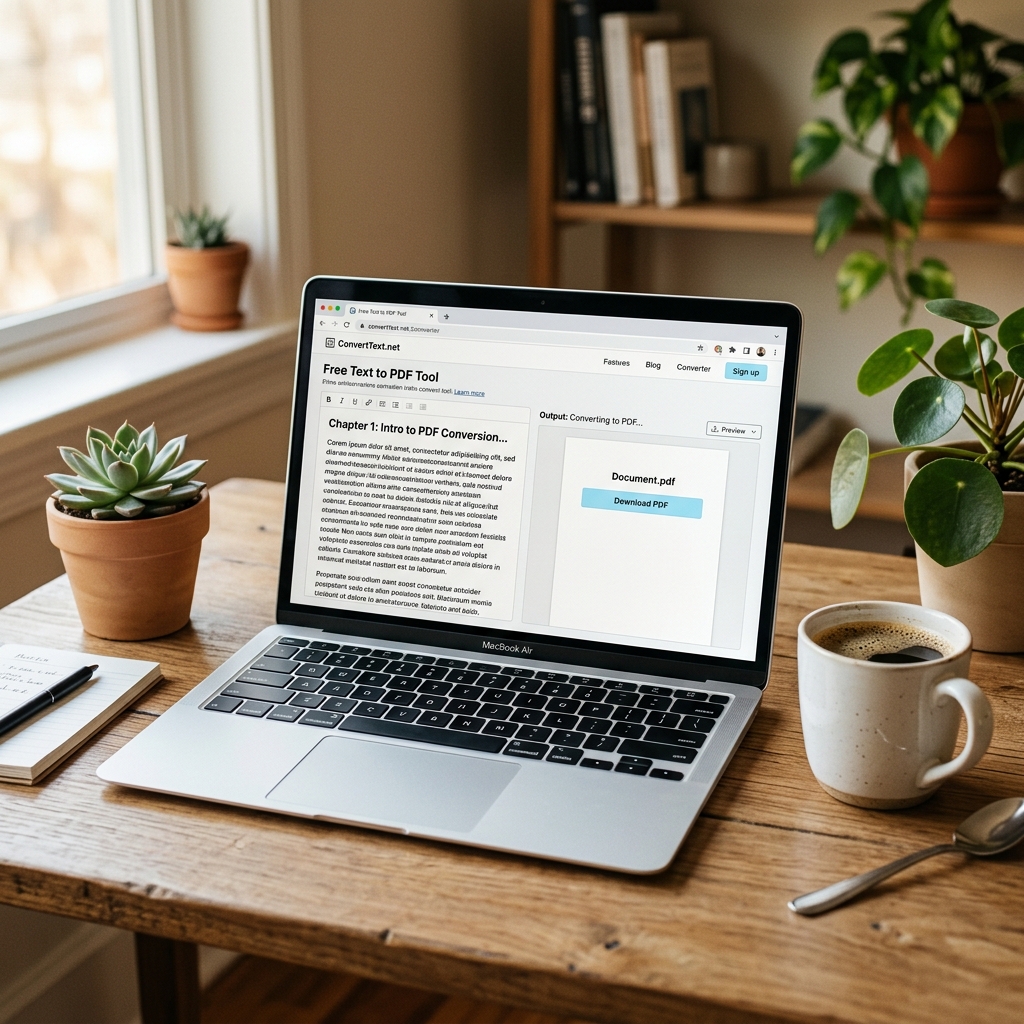
Begin by pasting your written content directly into the editor canvas, or use the integrated document upload feature to load existing .docx or .txt files from your local storage. If you draft in markdown, plain text editors, or AI prompts, pasting the raw output provides a clean baseline for immediate styling.
Step 2: Structure Your Heading Hierarchy
Establish clear visual organization by highlighting major titles and applying Heading 1 (H1), assigning Heading 2 (H2) to core subtopics, and utilizing Heading 3 (H3) for granular breakdowns. Proper heading hierarchy makes long-form documents effortless to scan and improves readability when printed or shared digitally.
Step 3: Refine Typography and Paragraph Layout
Select a clean, modern font that matches your document's purpose. For corporate reports, financial estimates, and legal proposals, a modern sans-serif like Inter or Roboto conveys contemporary professionalism. For academic essays and literature, a classic serif font offers traditional authority. Adjust line spacing and text alignment to ensure balanced paragraph flow.
Step 4: Incorporate Lists, Code Blocks, and Visual Assets
Break up dense walls of text by organizing sequential instructions into numbered lists and key feature points into bulleted items. For technical documentation or engineering manuals, insert monospace code blocks with syntax clarity. Upload supporting logos, graphs, or screenshots to visually reinforce your written statements.
Step 5: Configure Running Headers, Footers, and Page Breaks
Navigate to the Page Settings panel to configure running headers containing your document title or company name. Enable automated page numbering in the footer so recipients can reference specific pages during reviews. If a section needs to start on a fresh page, insert a manual page break to prevent awkward mid-paragraph page splits.
Step 6: Generate and Download Your Final PDF
Click the primary Convert to PDF button. The client-side engine compiles all DOM elements, computes exact coordinate geometries, subsets the embedded fonts, and outputs a standardized, print-ready PDF binary to your download folder in a fraction of a second.
5. Understanding Font Subsetting and Binary Compression in Modern Converters
One of the most impressive technical feats of modern client-side Text to PDF converters is font subsetting. When a PDF embeds an entire typography file (such as a multi-weight TrueType or OpenType font), the resulting document size can balloon to several megabytes, even for a single page of text.
Advanced client-side engines analyze the precise glyphs utilized throughout your document. If your text contains only 85 unique characters, the compiler extracts and embeds solely the binary glyph definitions for those specific 85 characters, discarding the remaining thousands of unused glyphs in the font file. Combined with Flate/Deflate binary stream compression for text streams and JPEG/PNG object pass-through for images, client-side converters produce ultra-compact, high-performance PDF files typically ranging between 25 KB and 80 KB.
6. Troubleshooting Common Formatting Pitfalls When Converting Text to PDF
Even with modern tools, formatting edge cases can occasionally arise if raw text contains unconventional spacing, tabs, or non-standard characters. Here is how to troubleshoot and resolve the most common conversion challenges:
- Inconsistent Tab Spacing: Plain text editors often render tab stops as 4 or 8 spaces, which can misalign when converted into proportional fonts. Solution: Convert tabbed columns into structured HTML tables or bulleted lists before compiling to PDF.
- Awkward Line Wraps and Orphan Headings: An orphan heading occurs when a section title appears at the very bottom of a page, with its accompanying text pushed to the subsequent page. Solution: Insert a manual page break immediately prior to the heading to anchor it cleanly at the top of the next page.
- Oversized Embedded Images: Uploading ultra-high-resolution raw camera images (such as 15MB 4K photos) can dramatically slow down browser rendering. Solution: Downsample images to 1200–1600 pixels wide at 300 DPI prior to embedding; this preserves razor-sharp print quality while keeping your PDF file lightweight.
- Broken Special Characters and Emojis: Some legacy PDF engines fail to render mathematical symbols, accented characters, or emojis. Solution: Use modern UTF-8 compliant client-side compilers that map Unicode code points directly to embedded scalable vector glyphs.
7. Advanced Tips for Crafting Publication-Quality PDFs
While a good converter simplifies the conversion process, adhering to fundamental document design principles elevates your finished PDF from ordinary to exceptional:
1. Maintain Generous White Space and Padding
Avoid overcrowding your pages with edge-to-edge text. Generous margins (at least 0.75 inches / 20mm) provide visual breathing room, reduce cognitive fatigue, and prevent text from clipping when printed on standard desktop printers.
2. Limit Font Pairing to Two Harmonious Typefaces
Professional typography rarely uses more than two font families in a single document. A proven rule of thumb is to use one distinct font for headings and another legible, neutral font for body paragraphs. Avoid decorative novelty fonts that diminish legibility at smaller point sizes.
3. Ensure High Contrast Between Text and Background
Maintain strict contrast ratios between text elements and page surfaces. Black or deep charcoal text (#0f172a) on a clean white background delivers optimal optical clarity across monitors, mobile screens, e-readers, and physical paper.
4. Optimize Image Resolution Before Embedding
When including photos, charts, or corporate seals, ensure images have a resolution of at least 300 DPI for print fidelity, while keeping file sizes reasonable (under 2MB per image) to avoid creating unnecessarily bloated PDF file sizes.
5. Always Conduct a Post-Export Verification Check
Before emailing your generated PDF to clients, professors, or colleagues, open the file in a standard PDF viewer (such as Adobe Acrobat Reader, Apple Preview, or a web browser) to review page breaks, table alignments, and image placements across all pages.
8. Security and Compliance: Why Client-Side Conversion Matters
In an era dominated by stringent global data privacy regulations—such as GDPR in Europe, CCPA/CPRA in California, and HIPAA in healthcare—handling personal and corporate data responsibly is a legal and ethical necessity. Traditional online conversion utilities that upload files to unvetted cloud infrastructure present severe compliance hazards:
- Unintended Data Retention: Many legacy cloud services cache uploaded files on storage servers for 24 hours or longer, exposing sensitive data to server misconfigurations or unauthorized access.
- Third-Party Vendor Risk: Transmitting corporate documents through intermediaries violates strict corporate confidentiality agreements and non-disclosure obligations.
- Loss of Intellectual Property Control: Proprietary source code, patent drafts, client proposals, and confidential memos should never touch third-party servers without enterprise encryption agreements.
By executing 100% of the document synthesis in local browser memory via client-side engines, tools like Text2PDF eliminate third-party vendor risks entirely. Because zero bytes of your document content ever cross a network wire, client-side conversion provides effortless compliance with strict data protection frameworks.
9. Summary and Recommendations
The need to transform unstructured text into durable, universally accessible PDF documents is universal. In 2026, you no longer need to compromise between convenience, visual elegance, and data security. The best free online Text to PDF converter is one that respects your privacy through local-first browser processing, offers rich typography and layout controls, operates with zero paywalls or registration barriers, and delivers instantaneous, professional output.
Whether you are generating invoices, submitting academic homework, distributing technical whitepapers, or archiving meeting minutes, leveraging a client-side converter streamlines your workflow while keeping your confidential data strictly where it belongs—on your device.